
Last updated on Jun 14th
Here’s an uncomfortable number to sit with: roughly 13,000 WordPress sites get hacked every day, and the median time between a vulnerability being disclosed and exploited is just five hours. If that doesn’t make wordpress security feel urgent, I don’t know what will.
I’ve managed enough WordPress sites to know that “I’ll get to security later” is one of the most expensive sentences a site owner can say. Later usually means after the defacement, the spam emails from your domain, or Google flagging your homepage with a red warning screen.
The good news? You don’t need to be a developer to dramatically reduce your risk. This guide walks through the practical steps that actually move the needle in the order that matters most.
Why wordpress security needs a modern approach
I hear this all the time: “WordPress gets hacked constantly. It must be insecure.” That’s like saying cars are unsafe because people speed.
According to Patchstack’s State of WordPress Security report, WordPress core accounted for less than 1% of reported vulnerabilities. The remaining 99%+ came from plugins and themes. In fact, in 2024, plugins accounted for 96% of all WordPress CVEs. The platform itself is maintained by a world-class security team. The problem lives in the ecosystem built on top of it.
That’s good news and bad news. Good because the foundation is solid. Bad because the responsibility for keeping your site secure shifts squarely onto your shoulders.
Keep WordPress Updated
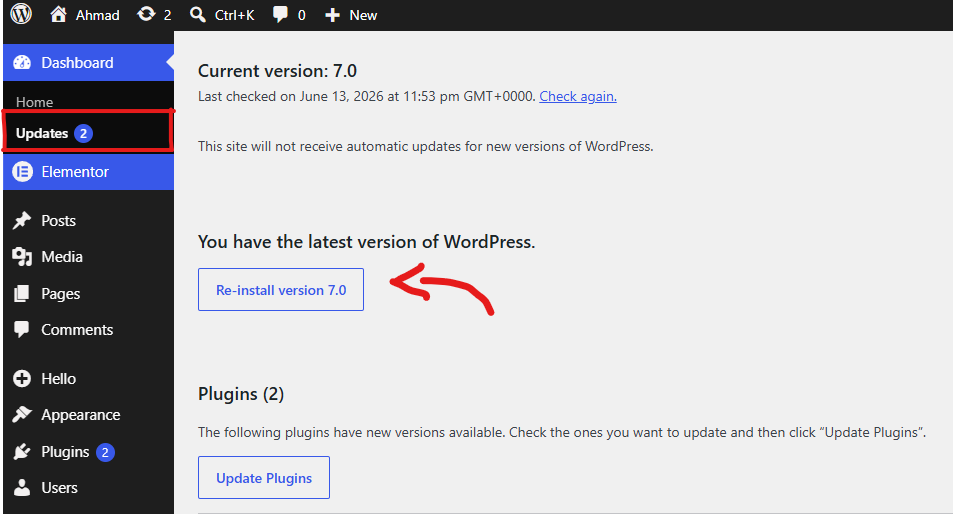
WordPress is open source software that gets regular maintenance and updates. By default, minor updates happen automatically.
For major releases, you have to trigger the update yourself.
WordPress also offers thousands of plugins and themes you can add to your site. These are maintained by third party developers, who also release updates on a regular basis.
These WordPress updates are vital for your site’s security and stability. You must ensure that your WordPress core, plugins, and theme are always up-to-date.
Improve WordPress Security with Strong Passwords and User Roles
Strong passwords are one of the most effective ways to protect your WordPress website from unauthorized access. Use unique passwords that combine letters, numbers, and special characters, and avoid reusing passwords across multiple accounts.
Equally important is managing user roles correctly. Not every user needs administrator access, so assign permissions based on responsibilities and follow the principle of least privilege.
Regularly review user accounts and remove access for inactive users or former team members. By combining strong passwords with proper user role management, you can significantly reduce security risks and strengthen your overall WordPress security.
Why WordPress Is Such a Big Target (And Why That’s Not the Whole Story)
WordPress powers around 43.5% of all websites. That scale is exactly why it attracts so much attention as one industry analysis put it, WordPress isn’t targeted because it’s uniquely insecure, but because attacking it at scale makes economic sense for criminals.
Here’s what surprises most people: WordPress core is genuinely solid only six vulnerabilities were found in it throughout all of 2025. The real risk lives elsewhere.
Vulnerable plugins cause about 91% of all WordPress security issues, and the numbers are staggering. In 2025 alone, researchers tracked 11,334 new vulnerabilities, and weekly disclosure data from early 2026 shows over 250 plugin vulnerabilities reported weekly roughly 36 per day.
What makes this worse: about 46% of vulnerabilities have no available patch at disclosure, meaning even a diligent owner can stay exposed for weeks. And in the first half of 2025, 57% required no authentication at all just a vulnerable plugin sitting active is enough.
If you take one thing from this section, let it be this: your plugin list is your single biggest attack surface, and treating it that way changes how you choose, install, and maintain everything else.
Backups: Your Actual Insurance Policy

If everything else fails, backups save you. Set up automated daily backups stored off server not in a folder on the same hosting account, which can be wiped out alongside everything else in a breach.
A solid setup covers your database (posts, settings, comments), your files (theme, plugins, uploads), and a copy stored somewhere physically separate, like Google Drive, Dropbox, or Amazon S3. Plugins like UpdraftPlus or BackWPup handle this automatically, and many managed hosts include it by default but check.
Frequency matters: a site publishing daily needs daily backups; a static brochure site might be fine weekly. The real test isn’t how often you back up it’s whether you’ve ever tried restoring from one. A backup you’ve never tested is a backup you don’t actually have.
What is WordPress Hosting and Why It is Important for Your Website

Your WordPress hosting provider plays the biggest role in keeping your site secure. A reliable shared hosting service like Hostinger, Bluehost, or SiteGround takes extra steps to defend their servers against common threats.
Here are just a few ways that quality web hosting companies work behind the scenes to protect your websites and data:
-
They keep a constant watch on their network for any suspicious behavior.
-
All reputable hosting providers have systems in place to stop large-scale DDoS attacks.
-
They keep their server software, PHP versions, and hardware current—so hackers can’t exploit known vulnerabilities in older versions.
-
They have disaster recovery and contingency plans ready to go, allowing them to safeguard your data in case of a major incident.
On a shared hosting plan, you’re sharing server resources with many other customers. This creates a risk of cross-site contamination, where a hacker could use a neighboring site to attack yours.
In contrast, choosing a managed WordPress hosting service gives you a more secure foundation for your website.
Managed WordPress hosting providers offer automatic backups, automated WordPress updates, and advanced firewall setups to protect your site. They often handle many of the technical security tasks mentioned in this guide for you.
We recommend SiteGround as our top choice for managed WordPress hosting. They offer responsive customer support, fast servers, and excellent reliability.
Be sure to get the best deal using our exclusive SiteGround coupon.
WordPress Security for DIY Users
If you do everything that we have mentioned thus far, then you are in pretty good shape.
But as always, there’s more that you can do to harden your WordPress security.
Keep in mind that some of these steps may require coding knowledge.
A Practical WordPress Security Checklist
| Security Layer | What It Protects Against | Effort Level | Priority |
|---|---|---|---|
| Automated backups | Total data loss, ransomware | Low (one-time setup) | Critical |
| Plugin audit & cleanup | 91% of known vulnerabilities | Medium | Critical |
| 2FA on all accounts | Credential stuffing, brute force | Low | High |
| WAF / firewall | Zero-day exploits, bot traffic | Low–Medium | High |
| Core/plugin updates | Disclosed vulnerabilities | Medium (ongoing) | High |
| File permission hardening | Unauthorized file changes | Medium | Medium |
| Activity logging | Detecting breaches early | Low | Medium |
The Plugin Audit: Where to Actually Start
Given that plugins cause most incidents, here’s a process worth doing this week:
- List every active plugin and ask: do we actually use this?
- Delete (don’t deactivate) anything unused. Inactive plugins are still vulnerable.
- Check last-updated dates. Anything untouched for over a year is a red flag over half of plugin developers surveyed admitted they knew about security issues and chose not to fix them.
- Cross-check against vulnerability databases like WPScan or Patchstack.
- Replace abandoned plugins with actively maintained alternatives.
Adding a Web Application Firewall (WAF)
A WAF filters malicious requests before they reach WordPress valuable against the 43% of vulnerabilities that don’t require authentication, often exploited by bots probing for plugin signatures.
Wordfence and Sucuri offer free tiers covering the basics: blocking malicious IPs, filtering attack patterns, and alerting you to suspicious activity. For business critical sites, a paid plan with real-time rule updates is worth it.
Scan WordPress for Malware and Vulnerabilitie
If you have a WordPress security plugin installed, it will regularly scan your website for malware and any signs of security problems.
However, if you notice a sudden drop in your website traffic or search engine rankings, it is a good idea to manually check your site for malware. You can do this using your WordPress security plugin or any trusted malware and security scanner tool.
These online scanning tools are very easy to use. You simply enter your website URL, and the system will crawl your site to detect any known malware or harmful code.
But keep in mind that most online WordPress security scanners can only detect and alert you about malware—they usually cannot remove it or fully clean a hacked website.
This leads us to the next step: how to clean and fix a hacked WordPress website.
Your Site Got Hacked? Here’s Exactly How to Fix It

First, don’t panic—but don’t wait either. The moment you suspect a hack (weird redirects, random admin users, or a “Hacked by” message), immediately put your site into maintenance mode or take it offline temporarily.
Then, change all your admin and hosting account passwords from a clean device—not your already‑compromised computer. Next, check your site using a remote malware scanner like Sucuri SiteCheck or VirusTotal to confirm what you’re dealing with.
If you have a clean backup from before the hack, restore it right away. No backup? You’ll need to manually clean your site: start by reviewing your .htaccess file, checking wp-config.php for suspicious code.
Then compare your core WordPress files against fresh copies from the official repository. Finally, scan your database for hidden backdoors—attackers love to hide admin users or malicious scripts there.
Once cleaned, force a password reset for all users, update everything (core, plugins, themes), and install a security plugin to monitor for reinfection. And here’s the hard lesson: after cleanup, audit how they got in—weak password? outdated plugin? neglected user role?—so it never happens again.
Fix Your WordPress Hacked Site
First, stay calm but act fast. Immediately put your site in maintenance mode or ask your hosting provider to suspend it temporarily—this stops further damage and protects your visitors.
Then, change every password: WordPress admin, hosting control panel, FTP/SFTP, and database. Do this from a clean, uninfected computer or your phone. Next, restore a clean backup if you have one.
No backup? You’ll need to manually scan your core files, .htaccess, wp-config.php, and the database for suspicious code or hidden backdoors. Use a reputable scanner like Sucuri SiteCheck or install Wordfence to help identify malicious files.
After cleaning, remove any unknown admin users, update everything (core, plugins, themes), and replace all compromised files with fresh copies from the WordPress repository.
Finally, harden your site against future attacks—enable 2FA, limit login attempts, and schedule weekly automated backups. And here’s the most important step: figure out how they got in.
Was it an outdated plugin? A weak password? A forgotten user account? Fix that hole, or you’ll be cleaning again next month.
FAQs About WordPress Security
How do I know if my WordPress site has been hacked?
Look for these common signs: unexpected redirects to other websites, unfamiliar admin users appearing in your dashboard, a sudden drop in Google rankings, strange popups or ads you didn’t add, your hosting provider suspending your account, or a “Hacked by…” message on your homepage. If you see any of these, assume a hack.
What should I do first after discovering a hack?
Immediately put your site into maintenance mode or take it offline. Then, change all passwords (WordPress admin, hosting account, FTP, and database) using a clean, uninfected computer. Contact your hosting provider—they may have backups or can isolate your site. Do not ignore it; every hour increases the damage.
Can I fix a hacked WordPress site myself without technical skills?
Yes, but only if you have a clean backup. Restoring a backup is the simplest method. Without a backup, manual cleanup requires checking core files, .htaccess, wp-config.php, and the database for malicious code. If that sounds overwhelming, hire a professional cleanup service like Sucuri or Wordfence—it’s worth the cost.
How do I prevent my site from getting hacked again after cleanup?
After cleaning, update everything (WordPress core, all plugins, and your theme). Remove unused plugins and themes. Change all user passwords and enable two-factor authentication (2FA). Install a reputable security plugin. Regularly audit user roles—never give admin access unnecessarily. And take weekly automated backups.
Will Google blacklist my site if it gets hacked?
Yes, Google actively scans for hacked sites and will show a “This site may be hacked” warning in search results. This destroys your traffic and reputation. After you clean your site, you must submit it to Google Search Console for review to remove the blacklist warning. The review can take a few days to a few weeks.
How much does it cost to fix a hacked WordPress site?
Costs vary widely. DIY with a backup: free (just your time). Manual self‑cleanup: free but risky. Professional cleanup services: $100–$500 depending on severity. Premium security plugins with cleanup: $100–$300/year. Hiring a freelancer or agency: $200–$1,000+. Prevention (backups + security plugin) is always cheaper than cleanup.